
I forgot to Turn it Back On: Salesforce Automation
I Forgot to Turn It Back On
You remembered to turn it off.
You completed the data load.
You finished the deployment.
Everything looked fine.
Then, a day later, someone asks:
“Why isn't this Flow running?”
You check Salesforce, and there it is: The Flow is still inactive.
Temporarily deactivating Salesforce automation is often a necessary part of deployments, large data migrations, or testing cycles. The problem is what happens afterward.
When multiple Flows, Apex Triggers, and Validation Rules are involved, restoring everything manually is remarkably easy to overlook. And unlike a hard deployment failure or validation error, a forgotten inactive automation fails silently.
Why Salesforce Automations Get Disabled in the First Place
During heavy org operations, active automations can trigger recursive updates, fire unintended email alerts, lock rows, or hit governor limits.
Common scenarios include:
Large data imports: Pausing record-triggered Flows to prevent duplicate tasks or external webhook calls.
Complex deployments: Temporarily disabling Validation Rules or Apex Triggers (via bypass frameworks or configuration) so legacy records can be updated cleanly.
End-to-end sandbox testing: Isolating specific business logic to troubleshoot an issue.
The manual lifecycle usually looks like this:
Identify the automations to pause.
Deactivate them.
Complete the deployment or data operation.
Restore the automations.
Steps 1 through 3 are typically planned down to the minute. Step 4 is too often treated as an afterthought.
The Risk of Silent Failures
An inactive automation doesn't throw a visible error toast or generate an unhandled fault email. Salesforce simply stops performing the actions that automation was built to handle.
Consider a record-triggered Flow that assigns high-priority follow-up tasks whenever an Enterprise deal closes:
The Flow is temporarily deactivated for a bulk data patch.
The data patch finishes cleanly, but no one turns the Flow back on.
New deals close, but tasks are never generated.
Days—or even weeks—later, sales leadership notices pipeline follow-ups have plummeted. The team is left scrambling to figure out when the breakdown occurred, which records slipped through, and how to backfill missing actions.
Leaving automations disabled leads to:
Silent data gaps: Missing field updates, downstream calculations, or parent-child syncs.
Broken operational processes: Tasks, notifications, and platform events that never fire.
Time-consuming post-mortems: Auditing logs and field history to determine when an automation went dark.
Restore the Original State, Not Just "Turn Everything On"
When operations wrap up, the instinct is often to go down the list and hit Activate on everything.
This is a mistake. You should restore each component to its original state, not simply activate every item you touch.
Automation NameTypeState Before OperationTemporary StateTarget State After OperationCustomer Follow-UpRecord-Triggered FlowActiveInactiveActiveLegacy Account SyncScheduled FlowInactiveInactiveInactiveData Migration HelperValidation RuleActiveInactiveActive
If you instruct your team to "turn everything back on," someone will inevitably activate an automation that was decommissioned, untested, or intentionally disabled. That introduces an entirely new set of production bugs.
Before touching a single toggle, document the baseline state.
A Simple 5-Step Restoration Framework
To prevent manual oversights from reaching production, integrate state tracking directly into your deployment checklist:
Before the Operation
Identify affected dependencies: List every Flow, Validation Rule, and Trigger (or trigger bypass setting) that touches the records you are updating.
Record baseline states: Document whether each component is currently Active or Inactive. Never assume.
Deactivate selectively: Only pause what is strictly necessary for the operation.
After the Operation
Restore original baselines: Reactivate the components that were active before the operation began. Leave previously inactive automations alone.
Verify live execution: Create or update a test record in the target environment to confirm that triggers, Flows, and validation logic run as expected.
Don't Rely on Deployment Tools to Manage Activation States
Flow activation behavior across environments can vary depending on your deployment tooling, metadata API version, and CI/CD pipelines. For instance, deploying Flows between sandboxes and production can default components to inactive unless explicit activation parameters or modern release tooling are configured.
Always perform post-deployment verification in the target org rather than assuming deployment success equals an active automation.
The Overhead of Manual Restoration at Scale
Restoring two or three automations by hand is manageable. The risk escalates in enterprise Salesforce orgs with hundreds of Flows, Validation Rules, and complex Apex trigger frameworks.
At scale, manual tracking requires:
Sifting through extensive lists in Salesforce Setup.
Remembering which Flow version was active.
Relying entirely on manual spreadsheets and human memory during late-night deployment windows.
(Related reading: The Hidden Cost of Hunting Through Salesforce Setup and our guide on Safely Deactivating Flows Before Data Imports.)
How PausePlay Solves This
PausePlay is built around the restore, not just the pause. Before anything is switched off, it records the original state of every Flow, Apex Trigger and Validation Rule you select (your baseline) and brings each one back to exactly that state afterwards. What was active is reactivated. What was already off stays off.
There are three ways to use it, depending on how much of the work you want to hand over.
Apply all, Revert all
For a quick data load or deployment: pick the automations, click Apply all, do the work, then click Revert all. Everything goes back exactly as it was. No list to keep, no browser tab to remember.
Sessions
When you want a record of what happened, group your pauses in a Session. You can follow it while it runs, revert the whole Session in one step, and look back afterwards at what was off, and when.
Scheduled Sessions
For work that runs overnight, over a weekend or on a fixed date, schedule the Session instead. It can start immediately, at a set time, or when a date or condition you define is met, for example one checked in a Flow. You also decide when it restores: after a set number of hours, or when a date or condition is met. Nobody starts it by hand, and nobody has to remember to turn anything back on.
If your team repeats the same operation, save the configuration and start Sessions from Flow or Apex with PausePlay Automate. And before you pause anything, check what might still run.
In terms of the framework above, PausePlay takes care of steps 2 to 4: recording the baselines, deactivating selectively and restoring the originals. Step 5, verifying live execution, stays with you. No tool should claim to know your business processes better than a test record does.
Wrap-Up
“I forgot to turn it back on” sounds like a trivial mistake, but in an enterprise CRM, it causes silent, compounding data damage.
A deployment or data load isn't finished when the progress bar hits 100%. It is finished when your Salesforce environment is confirmed to be back in its verified, expected operational state.
Frequently Asked Questions
What happens if I forget to reactivate a Salesforce Flow?
The Flow remains dormant and will not execute when its trigger conditions are met. Salesforce will not generate an error notification; instead, tasks, field updates, and downstream automations will silently fail to occur.
Should I reactivate every automation after a deployment?
No. Always restore components to their pre-deployment state. If an automation was inactive prior to the deployment, reactivating it can execute outdated, deprecated, or untested logic.
How can teams prevent forgetting to reactivate automations?
Adopt a strict deployment checklist that records baseline states before any changes are made, run post-deployment validation tests, or use state-management tools like PausePlay to automate the snapshot and restoration process.
Can Apex Triggers be deactivated directly in Production?
Unlike Flows and Validation Rules, Apex Triggers cannot be toggled on or off directly through the Production Setup UI without a metadata deployment, unless your org uses a trigger bypass architecture (such as Custom Metadata, Custom Settings, or Feature Flags).
Would you like to tailor the Call-to-Action section toward a specific conversion goal (such as booking a live demo, installing an AppExchange package, or joining a beta waitlist)?
Explore More
Related Posts
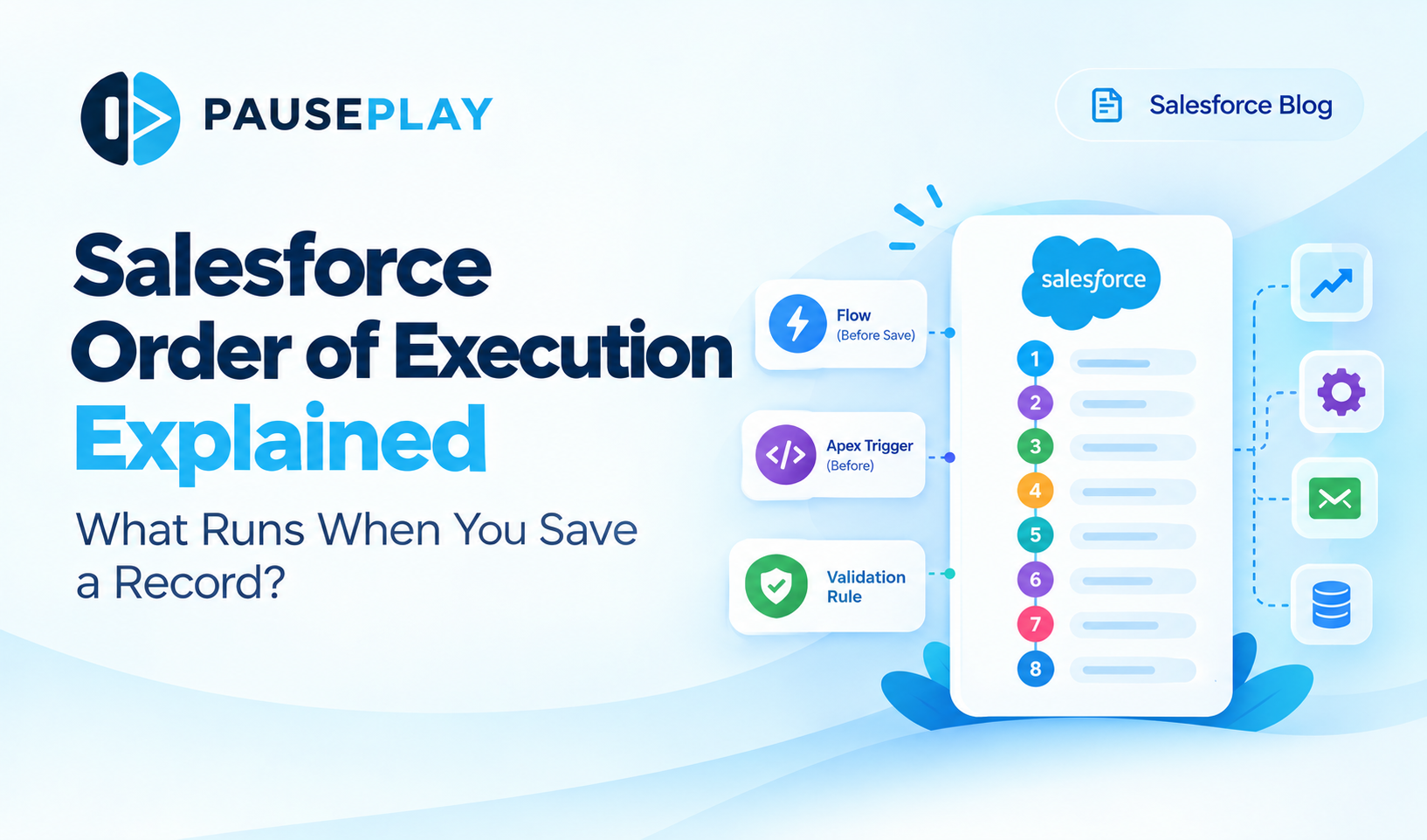
Salesforce Order of Execution Explained (2026)
Learn the Salesforce Order of Execution, how Flows and Apex Triggers interact, and how to troubleshoot automation issues during data changes.
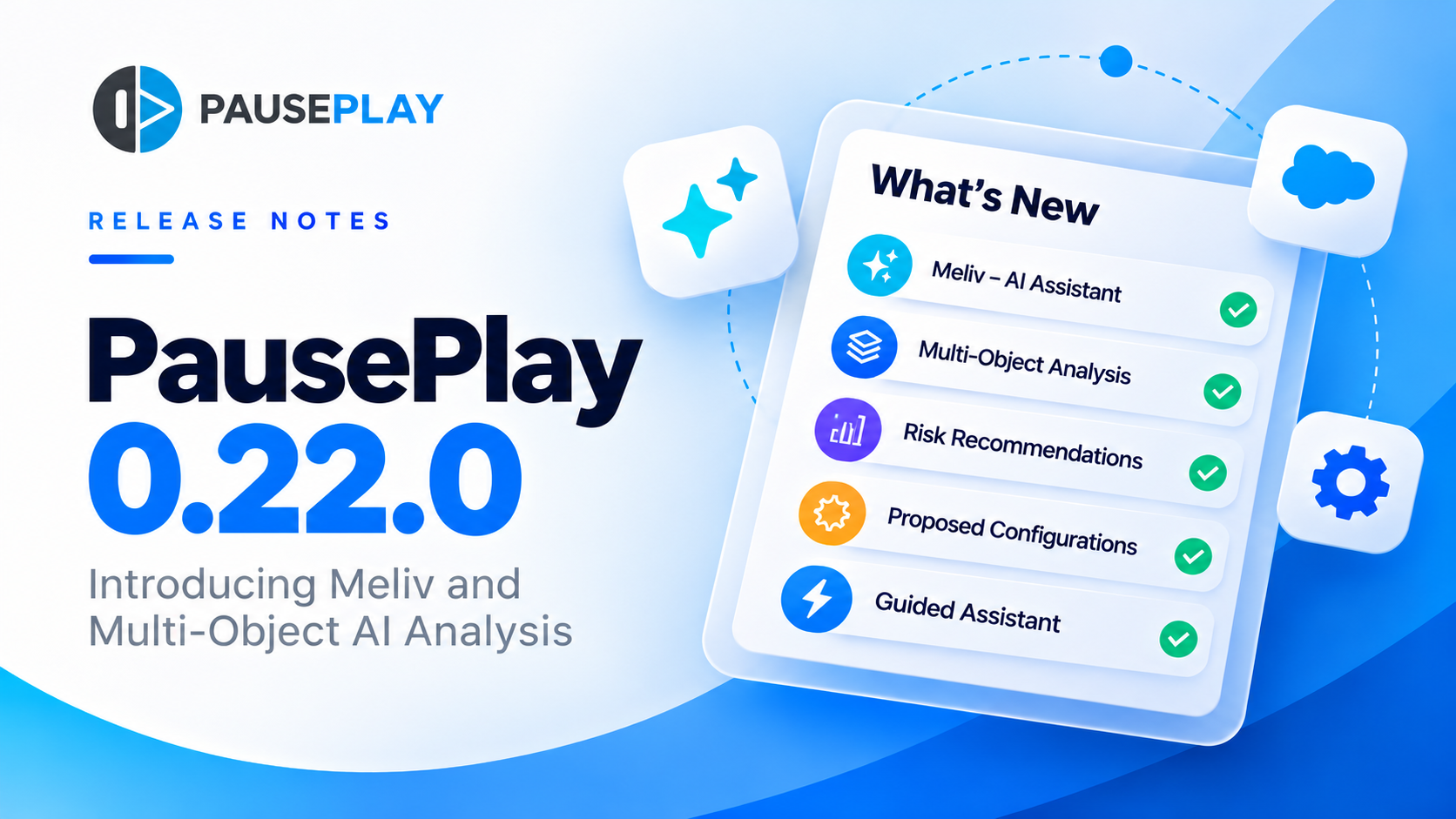
PausePlay 0.22.0-2 Release Notes: Meliv AI
Discover what's new in PausePlay 0.22.0-2: Meliv AI, multi-object Salesforce automation analysis, risk recommendations, and guided configuration creation.

Meet Meliv: AI-Powered Salesforce Automation Analysis
Meet Meliv, the new PausePlay AI assistant. Analyze Salesforce Flows, Triggers and Validation Rules, understand risks and create automation configurations.