
Migrate Workflow Rules & Process Builder to Flow
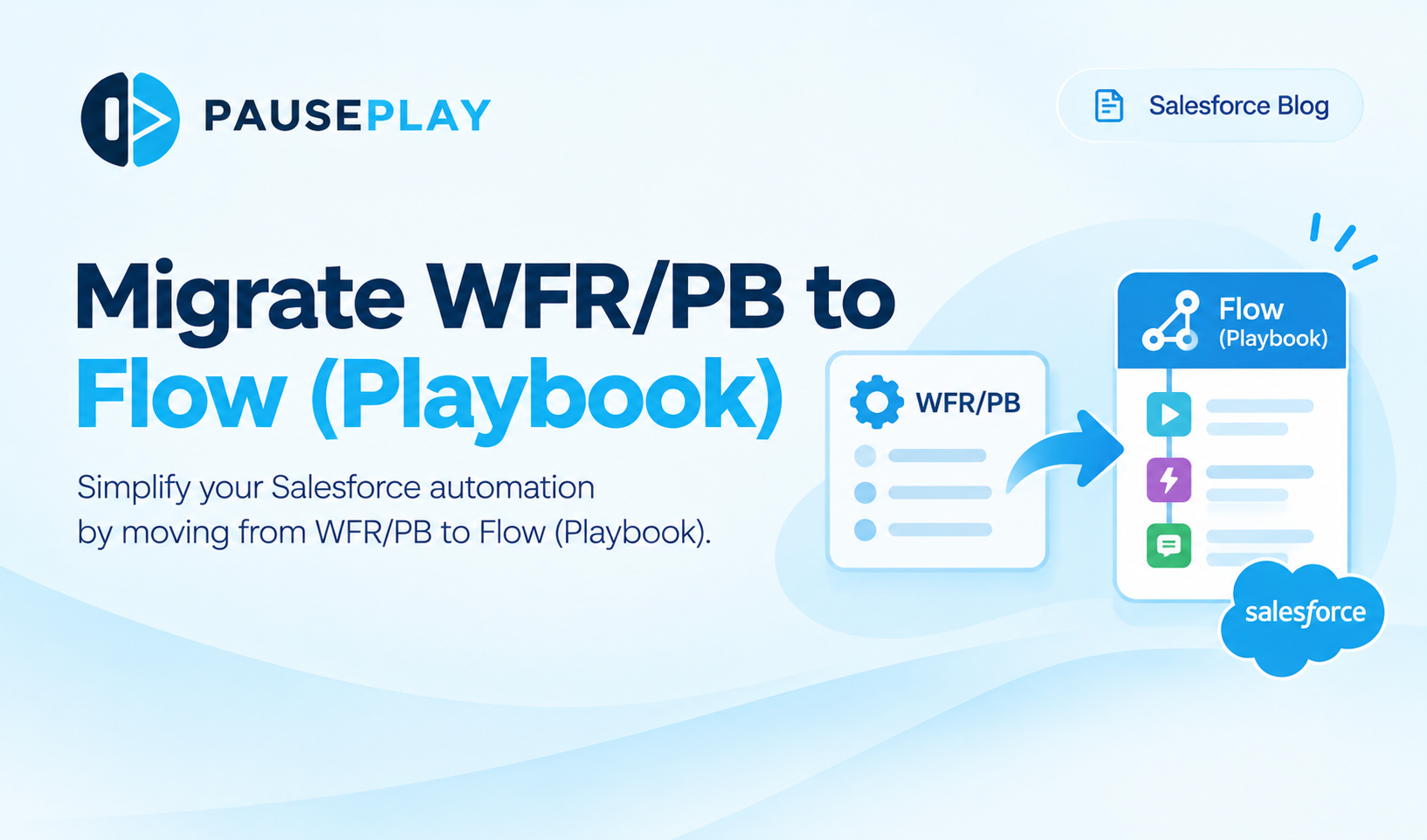
Migrate WFR/PB to Flow: A Practical Salesforce Migration Playbook
Salesforce automation has entered the Flow-first era. With customer support and bug fixes for Workflow Rules (WFR) and Process Builder (PB) officially retired on December 31, 2025, legacy declarative automations are running on borrowed time.
While existing rules still fire, they represent unmaintained technical debt: Salesforce no longer patches bugs, performance optimizations bypass them, and new capabilities are exclusive to Flow Builder.
However, migration is not a mechanical "lift-and-shift" exercise. Simply converting 40 legacy rules into 40 disconnected Flows will degrade org performance and make your automation impossible to debug.
Instead, migration is your best opportunity to audit what your system actually does, deprecate dead logic, and build a unified, high-performance automation architecture.
Here is a practical, step-by-step playbook for managing the cutover.
Why Consolidate into Flow Builder?
Migrating from disparate legacy tools into Flow Builder unlocks tangible architecture advantages:
Massive Performance Gains: Same-record updates can run in Before-Save (Fast Field Updates), executing up to 10x faster than Process Builder and avoiding recursive save cycles.
Granular Run-Order Control: Flow Trigger Explorer lets you visualize and order record-triggered Flows on a single object without writing code.
Unified Troubleshooting: Debug paths, error logs, and fault paths exist in a single builder rather than across multiple legacy engines.
Simplified Tech Stack: Eliminates the mental tax of deciphering whether a field update was caused by a WFR, a PB, an Apex Trigger, or a Flow.
(Related reading: Apex Triggers vs. Flows: Which Should You Use?)
Step 1: Audit Your Automation Landscape
Before converting anything, catalog what is currently firing in your production environment.
Build an inventory of all active Workflow Rules and Process Builders. For each automation, document:
Target Object: (e.g.,
Account,Case,Opportunity)Evaluation Criteria: (Created, Created/Edited, Meets criteria)
Execution Actions: Same-record updates, cross-record updates, email alerts, or outbound messages.
Time-Based Dependencies: Scheduled actions or pending time triggers.
Business Ownership: Is this rule still relevant to current sales/service operations, or is it an artifact of a process retired three years ago?
Rule of Thumb: If an automation has had no edits in three years and touches legacy fields that users no longer populate, validate with stakeholders whether it can simply be retired rather than rebuilt.
Step 2: Prioritize Your Migration Queue
Do not attempt a big-bang cutover across your entire org. Group automations by complexity and risk to create an incremental rollout plan:
PriorityAutomation PatternTarget Flow ArchitectureStrategyP1: Quick WinsSame-record field updatesFast Field Updates (Before-Save)Immediate performance win; bypasses unnecessary save cycles and trigger re-entry.P2: NotificationsStandard Email Alerts & Field UpdatesActions & Related Records (After-Save)Straightforward conversion; verify email templates and recipient fields.P3: Multi-ActionCross-object updates, chatter posts, child record creationActions & Related Records (After-Save)Evaluate whether multiple legacy rules can be merged into a single consolidated Flow path.P4: ComplexScheduled actions, recursion loops, or complex boolean logicScheduled Paths + SubflowsManual redesign required. Audit the pending pause queue before deactivating.
Step 3: Use the Native Migration Tool (With Caution)
Salesforce provides a native Migrate to Flow tool in Setup (Setup > Migrate to Flow). While useful for rapid translation, understand its primary limitation:
The Flow Sprawl Trap: The migration tool converts automations on a strict 1:1 basis. Converting 15 Workflow Rules on the
Opportunityobject produces 15 individual, disconnected Flows.
Best Practice for Using the Migration Tool:
Use it as a logic extractor: Run the tool in a sandbox to automatically convert complex formula criteria into Flow elements.
Do not activate immediately: Review the generated Flow. Instead of deploying 10 individual micro-flows, copy or integrate the migrated nodes into your unified domain Flow for that object.
Inspect unsupported elements: Outbound messages, complex criteria with custom traversal, and specific multi-currency operations may not convert automatically and will require manual configuration.
Step 4: Address the "Paused Interviews" Trap
When migrating Process Builders with scheduled actions (e.g., "Send renewal reminder 30 days before contract end"), deactivating the legacy process introduces a transitional challenge:
Existing records already sitting in the time-based queue will generally still fire from the old engine unless explicitly deleted.
New records will enter your new Flow’s Scheduled Path.
Before deactivating the old process:
Navigate to Setup > Paused and Failed Flow Interviews (or Time-Based Workflow).
Document pending queued actions.
Determine whether to let the pending queue naturally clear or purge it and let the new Flow re-evaluate the records.
Step 5: Test Execution Timing and Edge Cases
A Flow does not execute at the exact same point in the Salesforce Order of Execution as a Workflow Rule or Process Builder.
Workflow Rules execute after Apex triggers and system validation.
Before-Save Flows execute before custom validation rules and Apex triggers.
After-Save Flows execute after Apex triggers.
Before moving to production:
Test Validation Interleaving: Ensure a new Before-Save Flow doesn't write invalid data that immediately trips a Validation Rule.
Check for Recursion: Verify that an After-Save Flow doesn't update a parent record that in turn re-triggers the original record in an infinite loop.
Volume Testing: Run a bulk update of 200+ records via Data Loader in a sandbox to ensure your new Flows do not hit Apex CPU time limits or SOQL query limits (101).
Step 6: Deploy and Deactivate (Avoid Dual-Running)
Deploying a new Flow without simultaneously disabling the legacy automation will lead to dual-execution bugs—firing duplicate email alerts, creating duplicate tasks, or causing row-locking errors.
The Deployment Sequence:
Stage both changes together: Package your new Flow activation and your legacy rule deactivation into the same deployment artifact (or change window).
Pause adjacent automations: During the deployment and subsequent data smoke testing, ensure background processes don't trigger intermediate states.
Verify in Flow Trigger Explorer: Confirm that your new Flows sit in the expected execution order alongside existing record-triggered Flows.
Monitor Error Queues: Watch Flow exception logs and user reports closely during the first 48 hours post-migration.
(Related reading: Bulk Disable & Re-Enable Salesforce Triggers, Flows & Validation Rules)
Managing Automation State During Migration with PausePlay
During a large-scale migration, you often need to run backfill scripts, import historical records, or toggle back and forth between legacy rules and new Flow paths to isolate bugs.
Managing this manually across dozens of Setup screens is slow, error-prone, and risky.
PausePlay provides Salesforce teams with a central dashboard to control the migration cutover:
Instant Component Control: Pause legacy Workflow Rules, Process Builders, and newly deployed Flows simultaneously without manually opening each record.
Snapshot Migration Baselines: Keep an auditable record of what was active before you started testing your migration scripts.
Safe Backfilling: Freeze all notifications and downstream automation with one click while you backfill field data into newly converted Flow structures, then restore normal operations instantly.
Explore PausePlay for Salesforce Automations →
Final Thoughts
Retiring Workflow Rules and Process Builder is not just about keeping up with Salesforce release notes. Done deliberately, a Flow migration clears years of technical debt, slashes transaction execution times, and simplifies your architecture.
Resist the urge to simply run the conversion tool and walk away. Take the time to audit, consolidate, and structure your automation so your team can build faster with lower maintenance overhead for years to come.
Frequently Asked Questions
Do Workflow Rules and Process Builder still fire in 2026?
Yes. Existing active rules will continue to execute within your org. However, Salesforce has officially retired support and no longer provides bug fixes, security patches, or technical support for these tools. Furthermore, no new rules can be created.
Why shouldn't I convert every Workflow Rule into its own Flow?
Creating a 1:1 Flow for every legacy rule causes severe Flow sprawl. Having dozens of individual record-triggered Flows on the same object degrades org performance, complicates debugging, and makes controlling the order of execution difficult. Consolidating related rules into unified Before-Save or After-Save Flows is the recommended architecture.
What is the difference between a Before-Save Flow and an After-Save Flow?
A Before-Save Flow (Fast Field Updates) runs before the record is written to the database, making it up to 10x faster and ideal for same-record field calculations. An After-Save Flow (Actions and Related Records) runs after the record is committed, allowing you to update child/parent records, post to Chatter, send outbound emails, or call external services.
What happens to scheduled actions in Process Builder when I deactivate it?
Pending scheduled actions remain in the paused interview queue and will still fire at their designated time unless manually deleted. New records, however, will no longer enter the deactivated Process Builder's schedule.
Would you like to build out a companion asset for this (such as a downloadable Migration Audit Spreadsheet template or an automation inventory checklist)?
Explore More
Related Posts
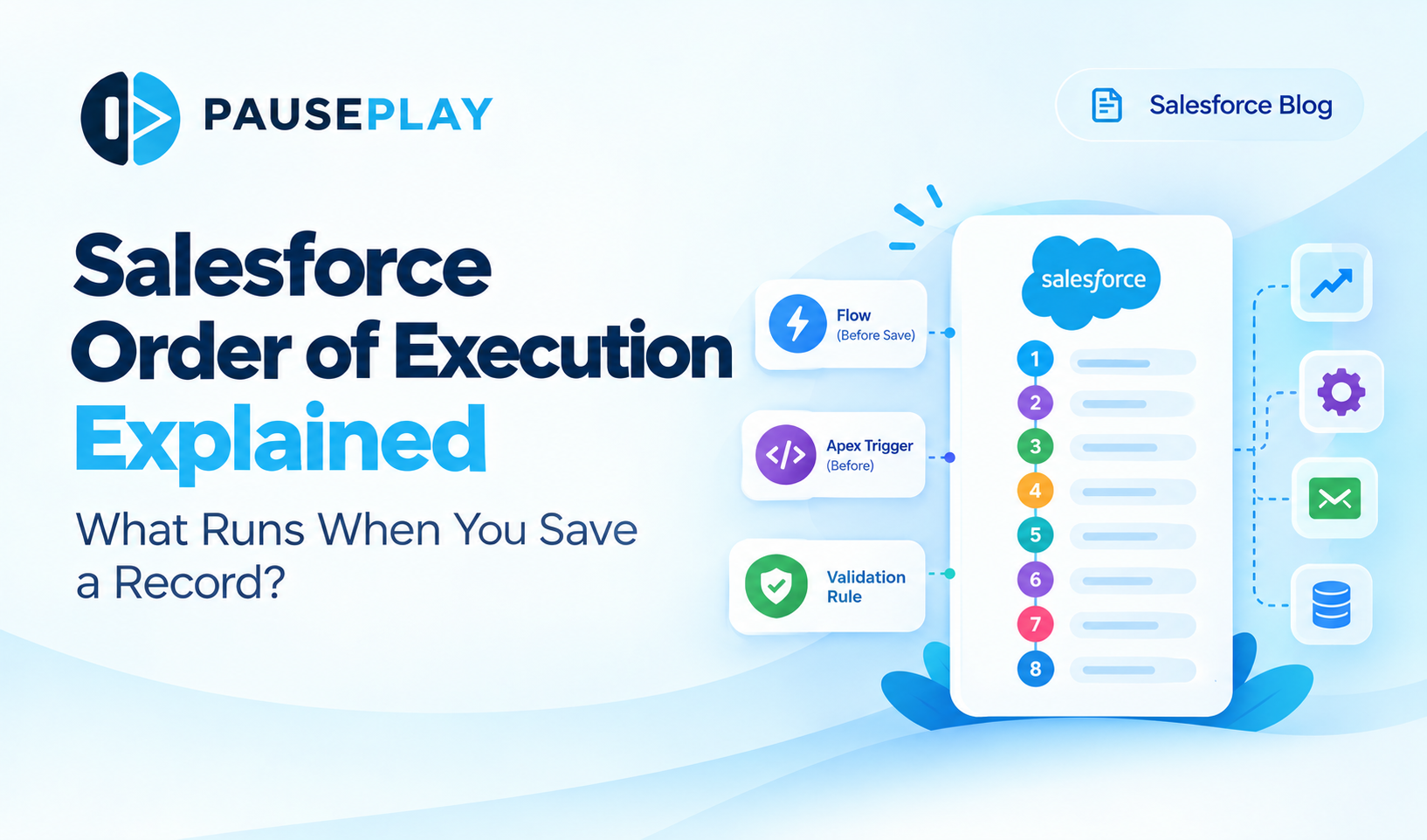
Salesforce Order of Execution Explained (2026)
Learn the Salesforce Order of Execution, how Flows and Apex Triggers interact, and how to troubleshoot automation issues during data changes.
I forgot to Turn it Back On: Salesforce Automation
Forgot to reactivate a Salesforce Flow, Trigger, or Validation Rule after a deployment? Learn how to track automation states and restore them safely.
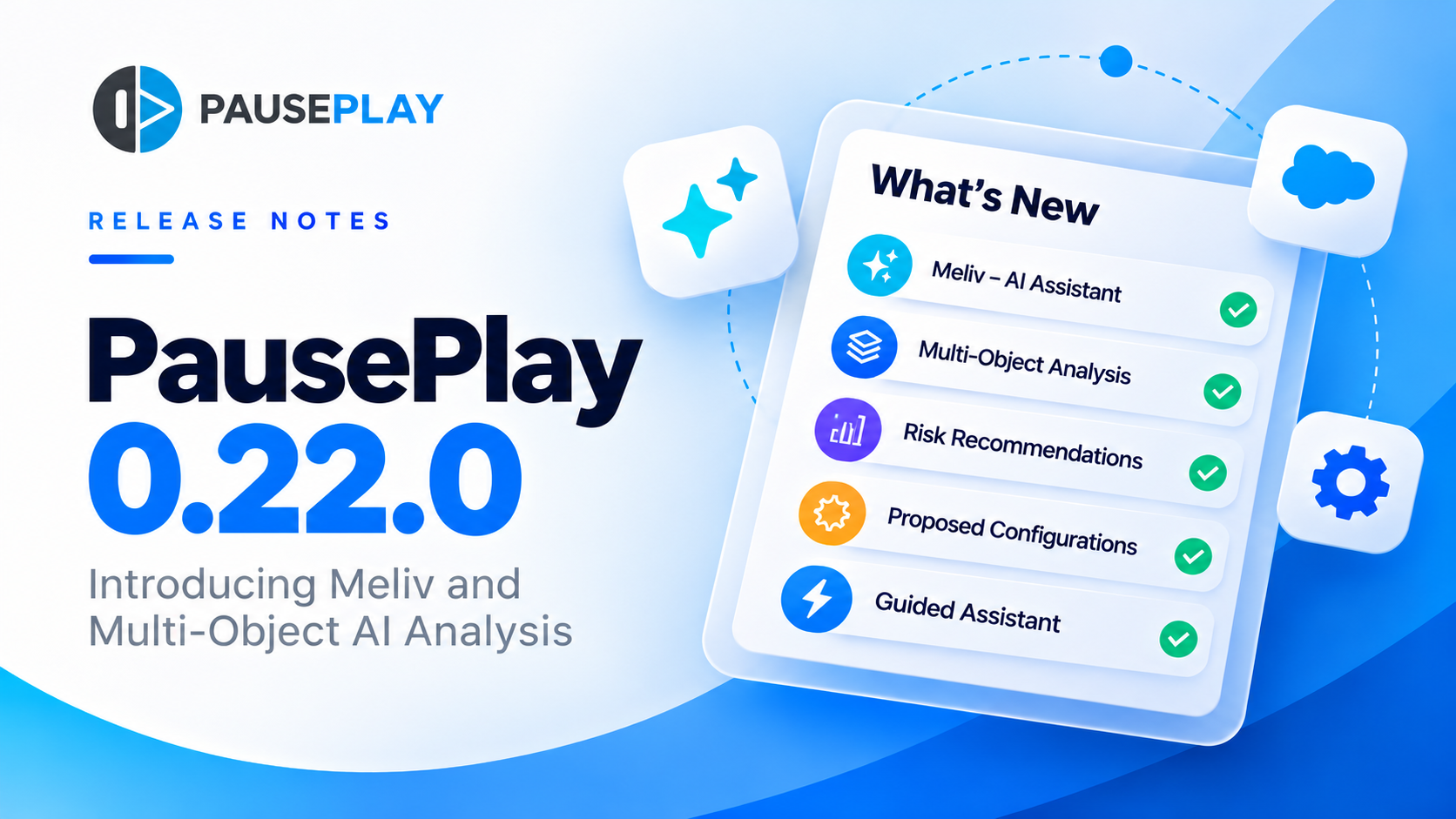
PausePlay 0.22.0-2 Release Notes: Meliv AI
Discover what's new in PausePlay 0.22.0-2: Meliv AI, multi-object Salesforce automation analysis, risk recommendations, and guided configuration creation.